1. Install the app
Download SiniPrompt for free from the App Store. It runs on iPhone and iPad with iOS or iPadOS 26.2 or later. No account needed.
2. Create your first script
On first launch the script list is empty. Tap Create your first script or + at the top right. SiniPrompt creates "Script 1" and opens it.
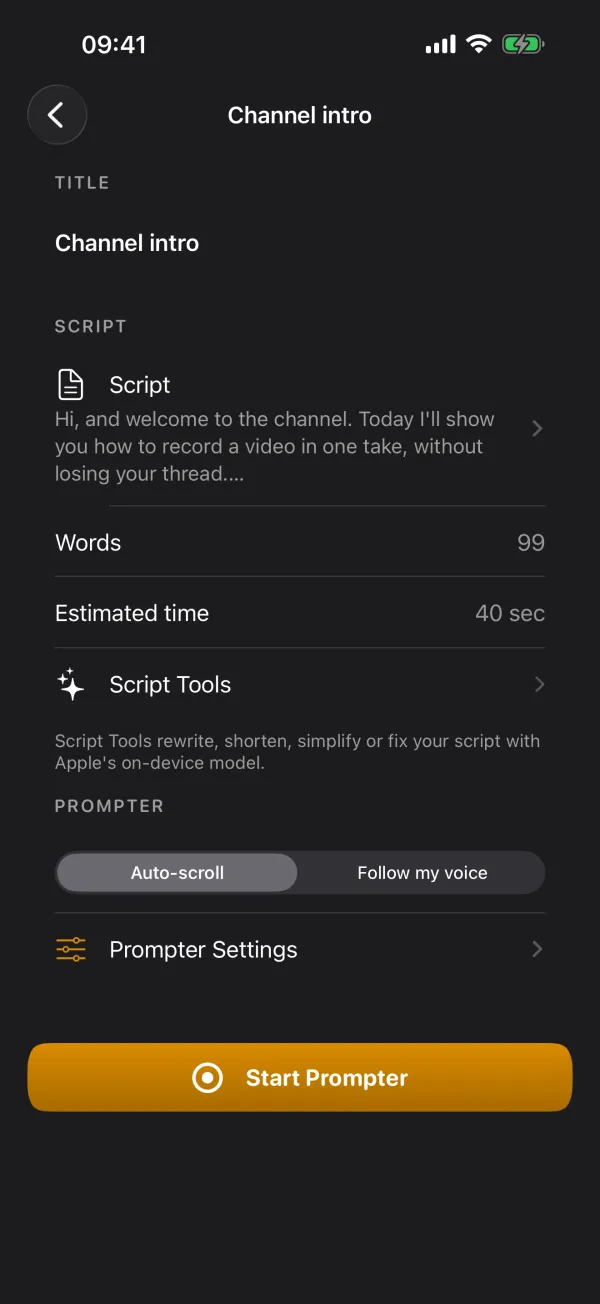
In the Script section, tap the row with the document icon to open the editor. Type there, paste text via Import → Paste from Clipboard or load a .txt or .md file with Import File…. More in Writing and importing scripts.
3. Pick a mode
Under Prompter you choose how the text moves:
- Auto-scroll: the text moves steadily at the speed you set (default 150 words per minute).
- Follow my voice: the text moves along as you read and waits when you pause. This is part of SiniPrompt Pro.
Font, margins, countdown, camera and more are under Prompter Settings. Every value is explained in All settings.
4. Start the prompter and allow access
Tap Start Prompter. The first time, iOS asks for:
- Camera: shows you behind the script and records the video.
- Microphone: records the audio and lets the text follow your voice.
- Speech Recognition: only in "Follow my voice" mode, on first start.
- Add to Photos: when the first recording is saved.
If you declined something by accident, change it in the iOS Settings app under Apps → SiniPrompt.
5. Rehearse
Before recording you can run through the script once. Tap ▶ (Rehearse without recording) at the bottom left. After the countdown the text runs and nothing is recorded. Tap the text to pause and resume.
6. Record
Tap the red record button at the bottom right. The countdown runs (3 seconds by default), recording starts at "1" and the text starts after the countdown. Read to camera. Tap the record button again to stop recording and pause the text.
At the end of the script the recording keeps running so you can finish calmly. Stop it with the record button. The video is saved to the Photos app and also listed with the script under Recordings.
Where to go next
- The prompter: every button and gesture
- Follow my voice: how to make it reliable
- Recording and exporting: formats, Cinematic, external microphones
Frequently asked questions
Do I need an account for SiniPrompt?
No. SiniPrompt has no user account. Scripts and settings stay on your device, recordings go to your photo library.
Can I use SiniPrompt without the camera?
Yes. If you do not allow camera access, the prompter runs as a text-only prompter. The record button, camera switch and camera settings are hidden then.