The screen
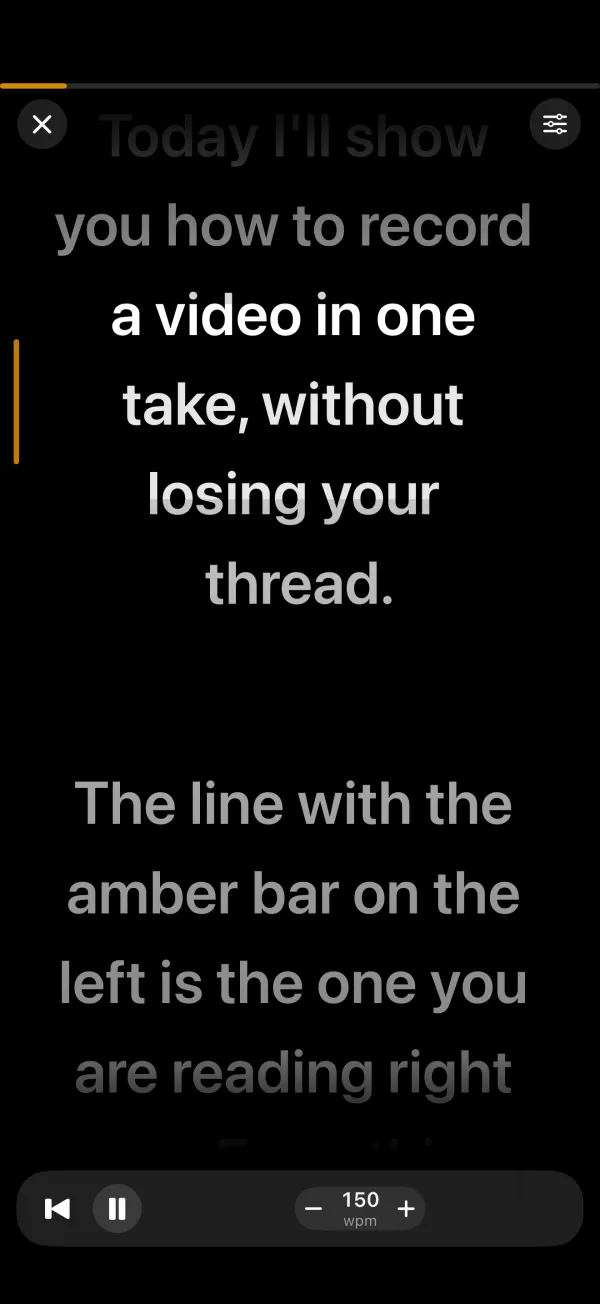
Behind the text you see the camera picture, with a dimming layer on top that keeps the text readable. The reading area sits in the upper third:
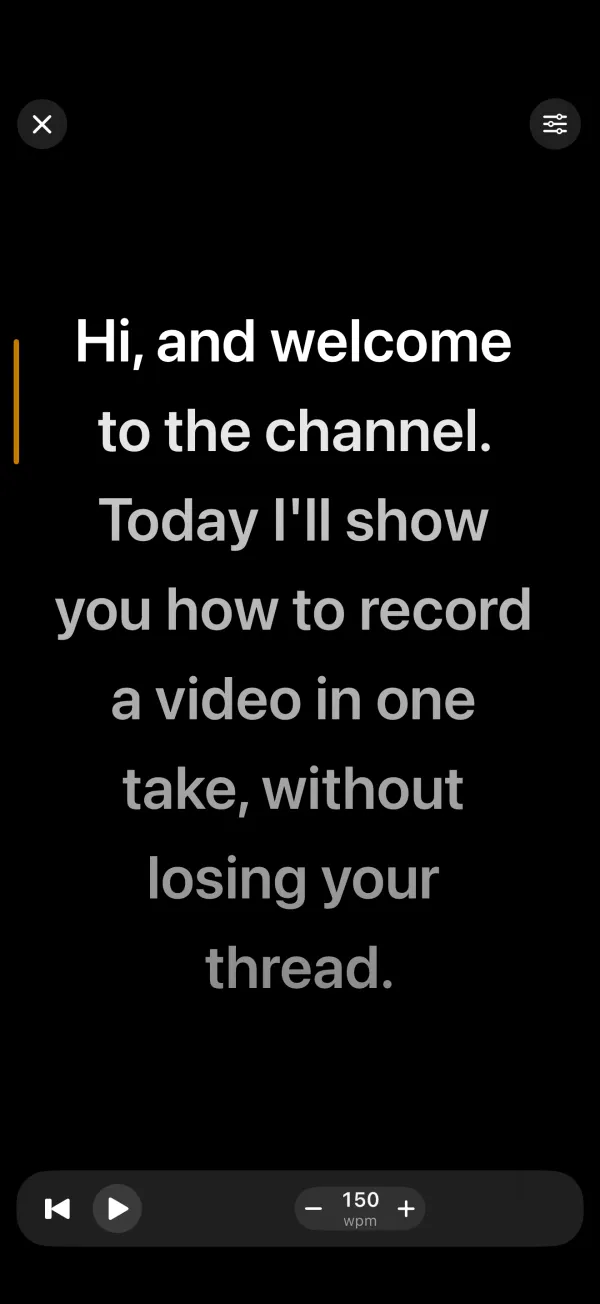
- An amber bar on the left edge marks the line you are reading.
- The current line is fully bright, upcoming lines slightly dimmer, lines already read clearly dimmed.
- In "Follow my voice" mode, the words already read on the current line are dimmed as well.
- A thin amber line at the top shows how far you are into the script.
The reading area sits high on purpose, close to the front camera, so your gaze reads as looking into the lens. The status bar and home indicator are hidden and the screen stays on.
Framing before you start
Before the prompter runs (and again at the end), a dashed outline shows the recorded frame. If you picked an output format such as 9:16, a solid outline marks the crop and the rest is shaded. The dimming is lighter in this phase so you can frame yourself.
The top bar
- X (Close prompter): back to the script view. A running recording is stopped and saved.
- Status capsule in the middle: shows output format and capture mode, for example "9:16 · Video" or "Cinematic". During the countdown it reads "Get ready". Short notices such as "Saved to Photos" appear here for three seconds. While recording it turns into the recording badge.
- Sliders icon (Prompter settings): opens a panel with font size, side margin, mirror, background dim, countdown, capture mode and output format. Changes apply immediately and are saved with the script.
The bottom bar
From left to right:
- ⏮ Restart from top
- Jumps to the start and runs the countdown again.
- ▶ / ❚❚
- Before starting: rehearse without recording. While running: pause. While paused: resume. During the countdown: cancel countdown. At the end: restart.
- Speed
- Auto-scroll only: − and + change the speed in steps of 10 words per minute (60 to 300). The value is saved with the script.
- Status
- "Follow my voice" only: "Loading speech model", "Listening", "Line 3/12", "Paused" or "End of script".
- Switch camera
- Front or back camera. Locked while recording.
- ● Record
- Starts or stops recording. A spinner shows while saving.
Rehearsing and recording
The record button behaves differently depending on the state:
- Before starting or at the end: the countdown begins and recording starts at "1", giving your video about one second of lead-in. The text starts after the countdown. With the countdown set to "Off", recording and text start at once.
- While paused: recording starts and the text resumes.
- While rehearsing: recording starts and the text keeps going without interruption.
- While recording: recording stops and the text pauses.
- During the countdown: no effect.
▶ only rehearses: countdown and text run, nothing is recorded.
Gestures
- Tap the text
- Auto-scroll: pause or resume. "Follow my voice": the tapped word becomes the current reading position, so you can jump back or ahead precisely.
- Drag up or down
- Pauses the text and moves it by hand. A quick flick coasts to a stop. In "Follow my voice" mode the line in the reading area becomes the new position when you let go.
Gestures work the same in mirror mode; SiniPrompt converts the mirrored position for you.
At the end of the script
When the text reaches the end, the status reads "End of script". A running recording does not stop automatically; stop it with the record button. Drag the text back down to pause and read on. ↻ Restart starts from the top.
Portrait and landscape
The prompter works in portrait and landscape, on iPad in every orientation. Camera picture and recording rotate with the device. Record in portrait for Reels, Shorts and TikTok and in landscape for YouTube, or pick the matching output format.
Frequently asked questions
Does recording stop automatically at the end of the script?
No. The text stops at the end and shows "End of script", the recording keeps running until you tap the record button. That gives you time for a clean ending.
Can I control SiniPrompt with a Bluetooth remote or foot pedal?
Not in version 1.1. The prompter is controlled on screen.
Does the screen turn off while recording?
No. The screen stays on while the prompter is open.