
Where to find what
- A script's Prompter Settings: in the script view under Prompter. Every setting is here.
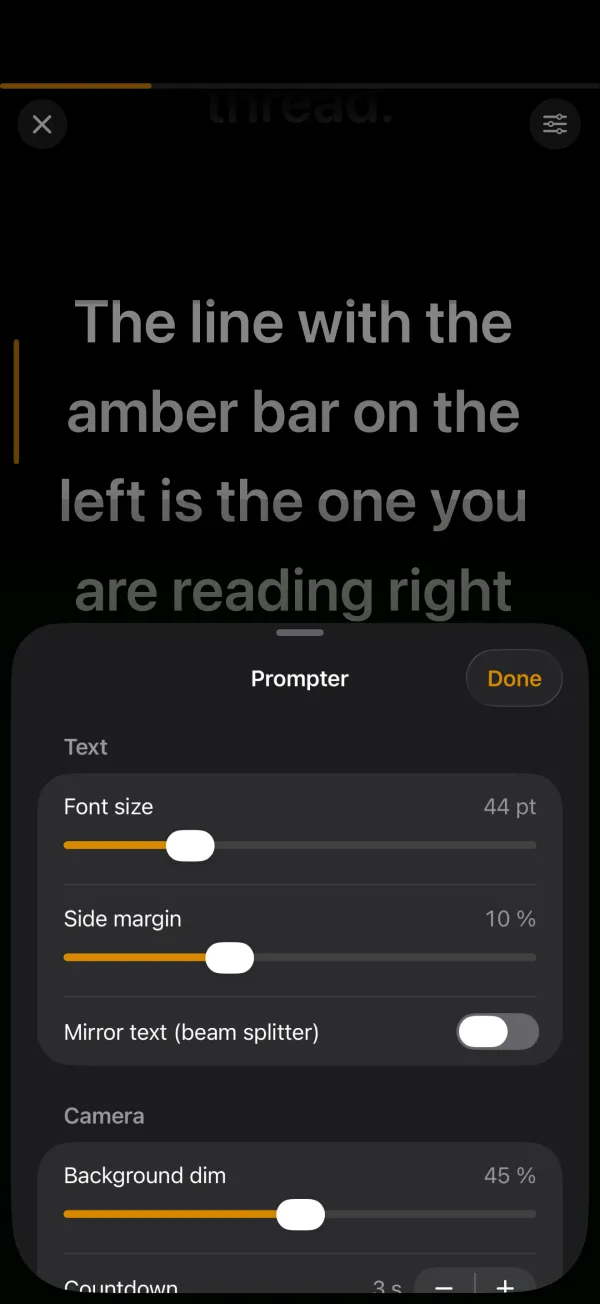
- In the prompter: via the sliders icon at the top right. It holds what you need while framing: font size, side margin, mirror, background dim, countdown, capture mode and output format. Changes apply immediately. Capture mode and output format cannot be changed while recording.
- Default Prompter Settings: from the menu at the top right of the script list. They apply to new scripts.
Scrolling
| Setting | Range | Default |
|---|---|---|
| Mode | Auto-scroll or Follow my voice (Pro) | Auto-scroll |
| Countdown | Off, 1 to 10 seconds | 3 s |
| Speed | 60 to 300 words per minute, in steps of 5 (steps of 10 in the prompter) | 150 wpm |
Speed applies to auto-scroll. SiniPrompt converts it into a scroll speed based on font size and margins, so 150 words per minute feels the same with large and small text.
Text
| Setting | Range | Default |
|---|---|---|
| Font size | 20 to 120 pt | 44 pt |
| Side margin | 0 to 30 % of the screen width per side | 10 % |
| Text colour | White, Yellow, Green, Cyan | White |
| Mirror text (beam splitter) | On or off | Off |
Side margin: a larger margin makes lines narrower. Your eyes move less from side to side, which looks more natural on camera.
Mirror text is only needed with a teleprompter rig that reflects the text off a glass pane (beam splitter). The text then reads the right way round on the glass.
Camera
| Setting | Range | Default |
|---|---|---|
| Camera | Front or Back | Front |
| Capture | Video or Cinematic (Pro) | Video |
| Output format | As recorded, 9:16, 16:9, 1:1, 4:5 (all except "As recorded" are Pro) | As recorded |
| Background dim | 0 to 90 %, in steps of 5 | 45 % |
Background dim places a dark layer between the camera picture and the text. More dim makes the text easier to read, less shows more of your picture. Before starting and at the end, the dim is capped at 12 % so you can frame yourself. Details on Cinematic and formats: Recording and exporting.
Voice Following
| Setting | Range | Default |
|---|---|---|
| Language | Script language or any language Apple's speech recognition supports | Script language |
More in Follow my voice.
Pro options on the free plan
If you pick a Pro option without a subscription, such as Cinematic or 9:16, SiniPrompt saves your choice and shows the Pro overview. Until Pro is active the prompter records plain video in the original format. With Pro your saved choice applies right away.
Defaults for new scripts
New scripts take the Default Prompter Settings. There are two ways to set them:
- In the script list, open the menu at the top right and choose Default Prompter Settings. Changes there are saved immediately. Reset to factory settings restores the values above.
- In a script's Prompter Settings, tap Use as default for new scripts under Defaults. That script's settings become the default.
Existing scripts keep their own settings. To bring a script back to the defaults, tap Reset to defaults in its Prompter Settings.
Frequently asked questions
Do settings apply to all scripts?
No, each script has its own settings. New scripts start with the default prompter settings, which you set from the script list.
What speed works well for videos?
Most people speak at 130 to 160 words per minute on camera. The default of 150 is a good start. Rehearse once, then adjust in the prompter with + and −.